

Create a New Knowledge Base
From the left sidebar, click Knowledge Base under the “Build” section.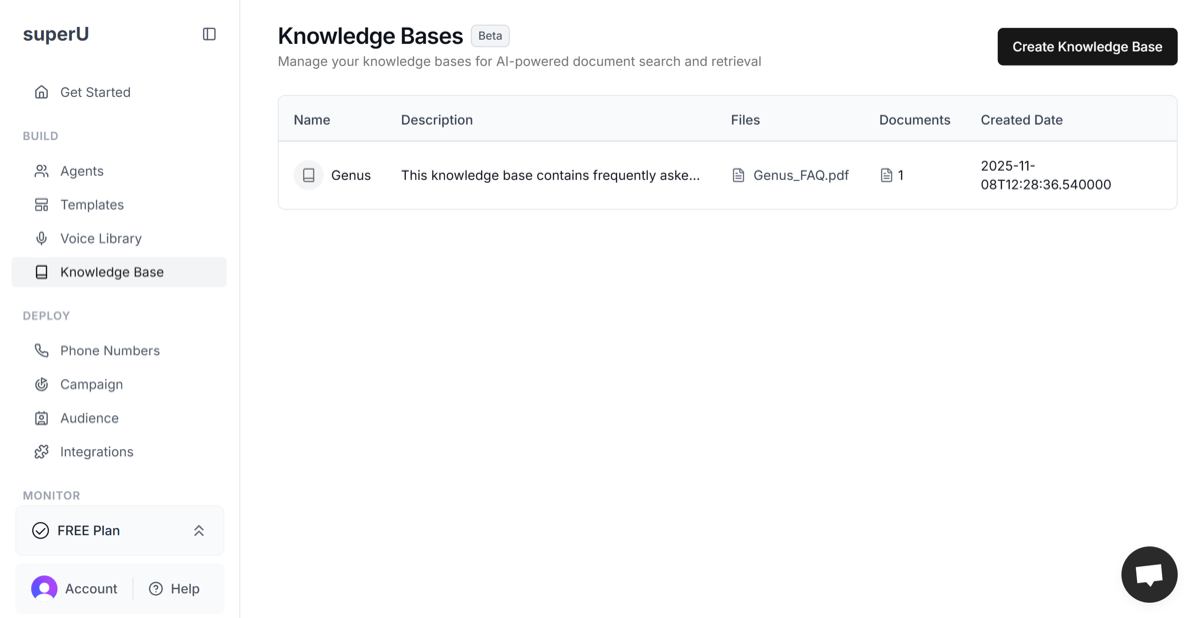
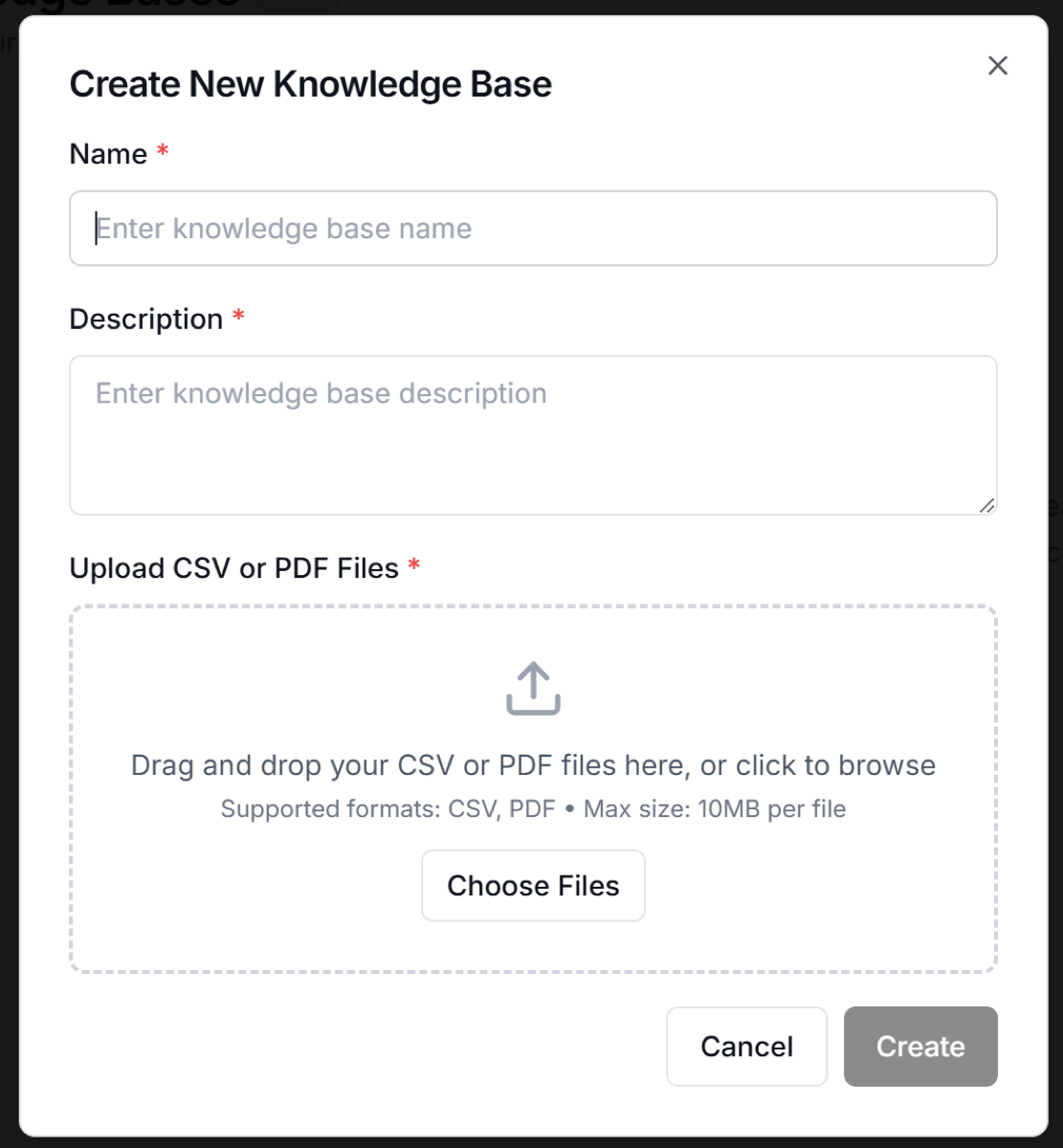
- Example: This Knowledge Base includes Genus inverter and battery FAQs with product features, model details, and warranty information.
- You absolutely need to add an accurate description along with your PDF or CSV file without it, the Knowledge Base will not have enough context to work properly.
- Supported formats: CSV or PDF
- File size limit: 10 MB
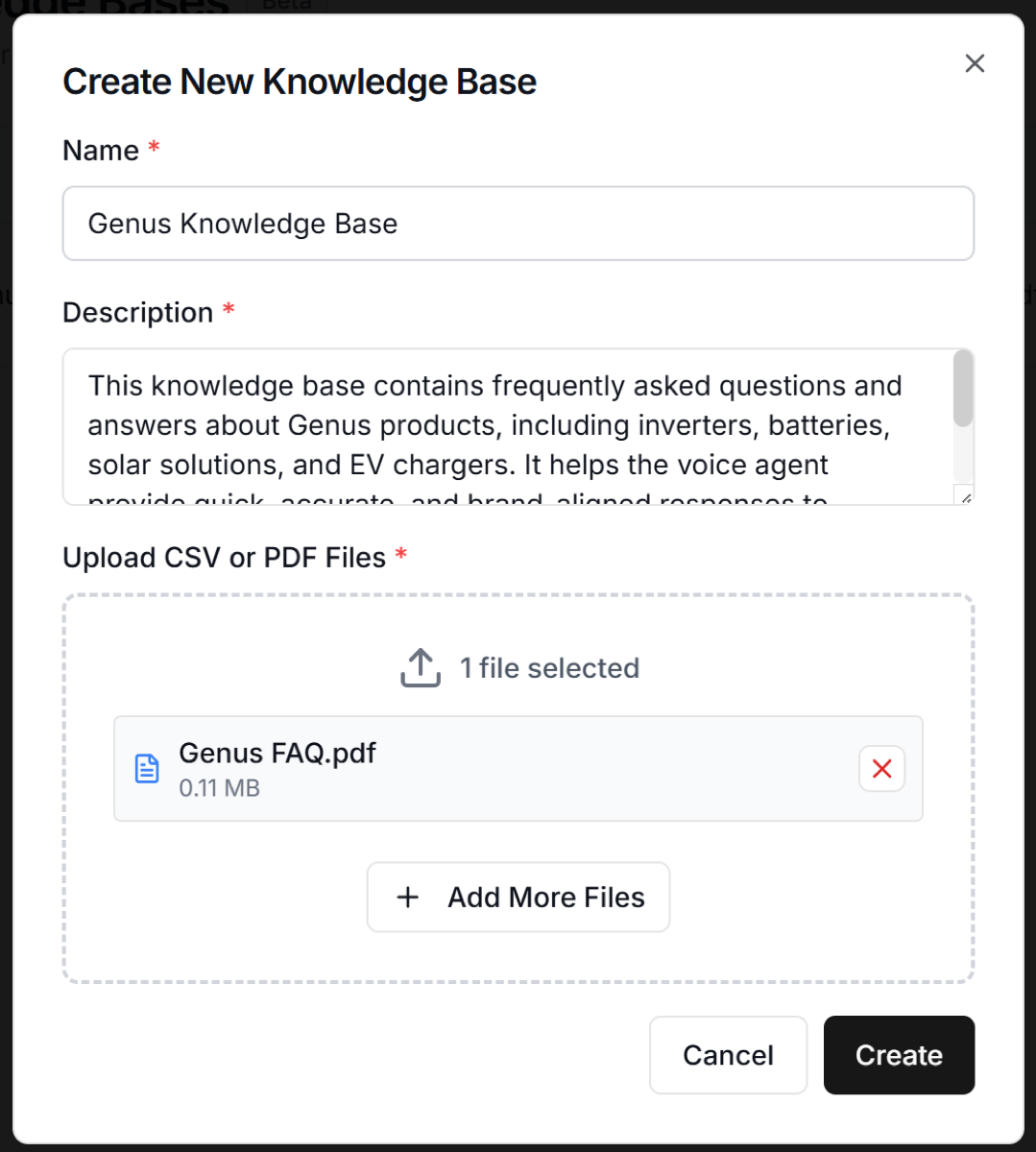 Your Knowledge Base will now appear in the main list.
Connect Knowledge Base to an Agent
Go to the Agents tab.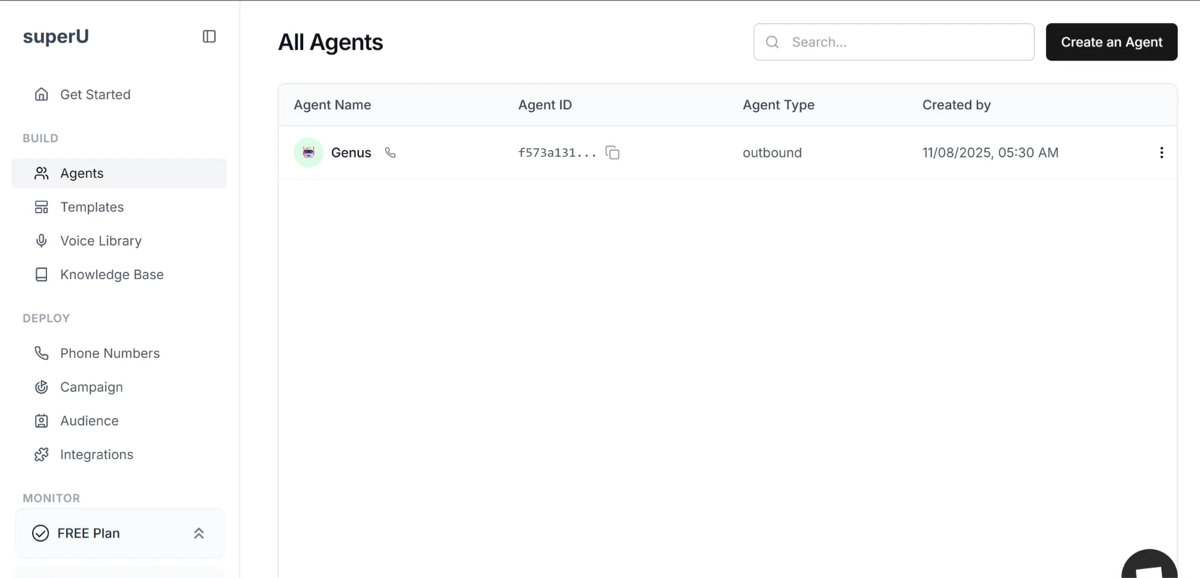
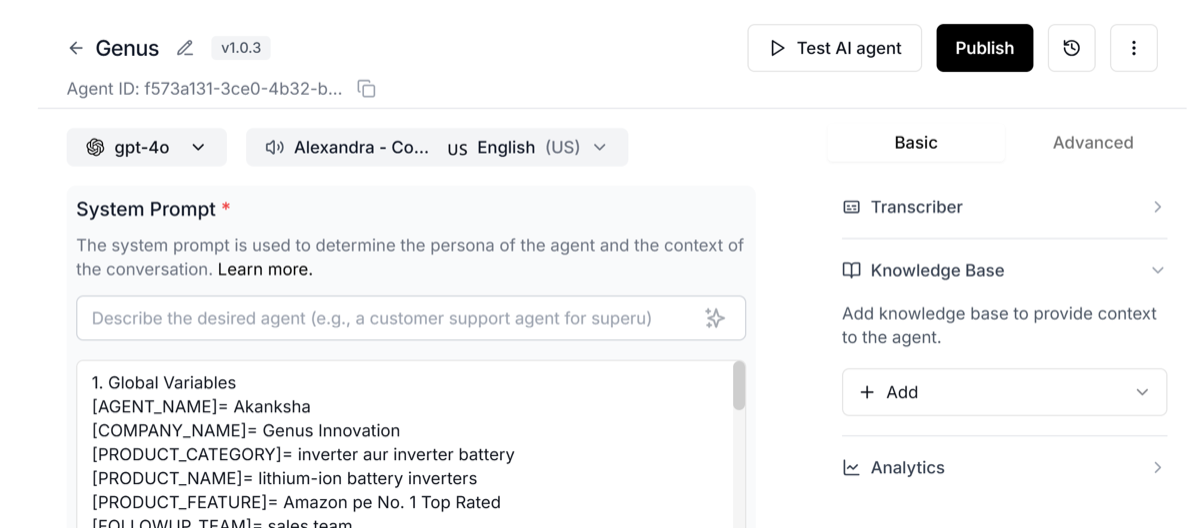 Select your new Knowledge Base and click Save.
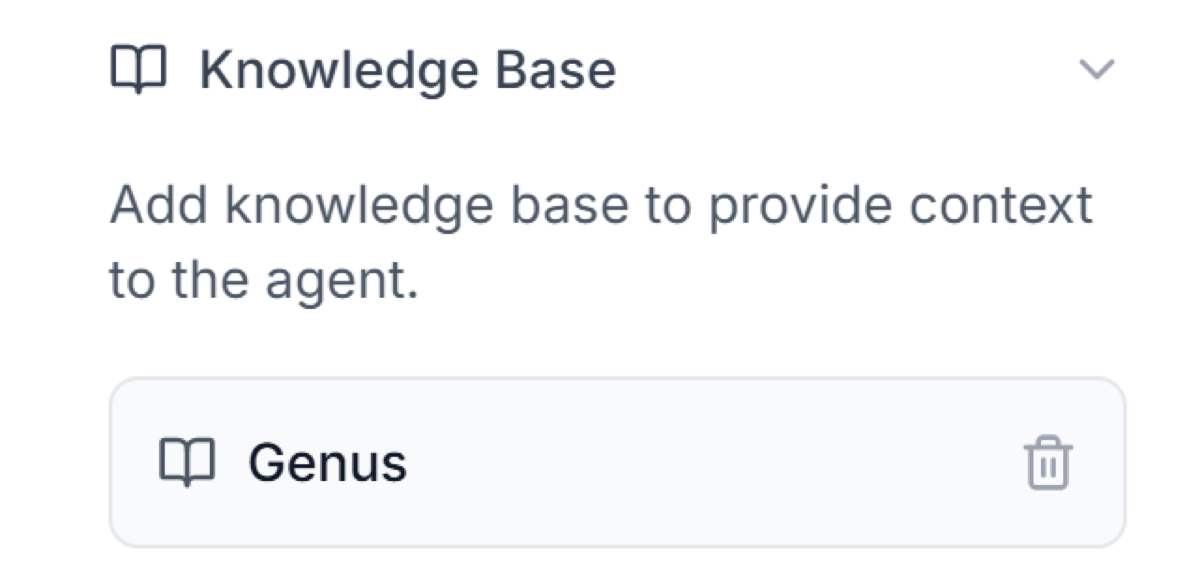 The agent will now use that Knowledge Base to answer questions during calls and your agent will sound informed and updated.