

1
Sign in to Wavix
Sign in to your Wavix account.
2
Create SIP Trunk
Navigate to Numbers & Trunks → Trunks.
- Select the Create new button.
- Enter a SIP trunk name.
- In the Caller ID section, select one of the phone numbers you purchased.
- Under Authentication Method, select Digest.
- Enter a strong Password.
- Select Next.
- Optionally configure limits, then select Save.
After creating the trunk, note the 5-digit SIP trunk ID (Username) and the Password you set. You will need these for SuperU.
3
Connect to SuperU
Go to your SuperU dashboard and open the Bring Your Own Number modal.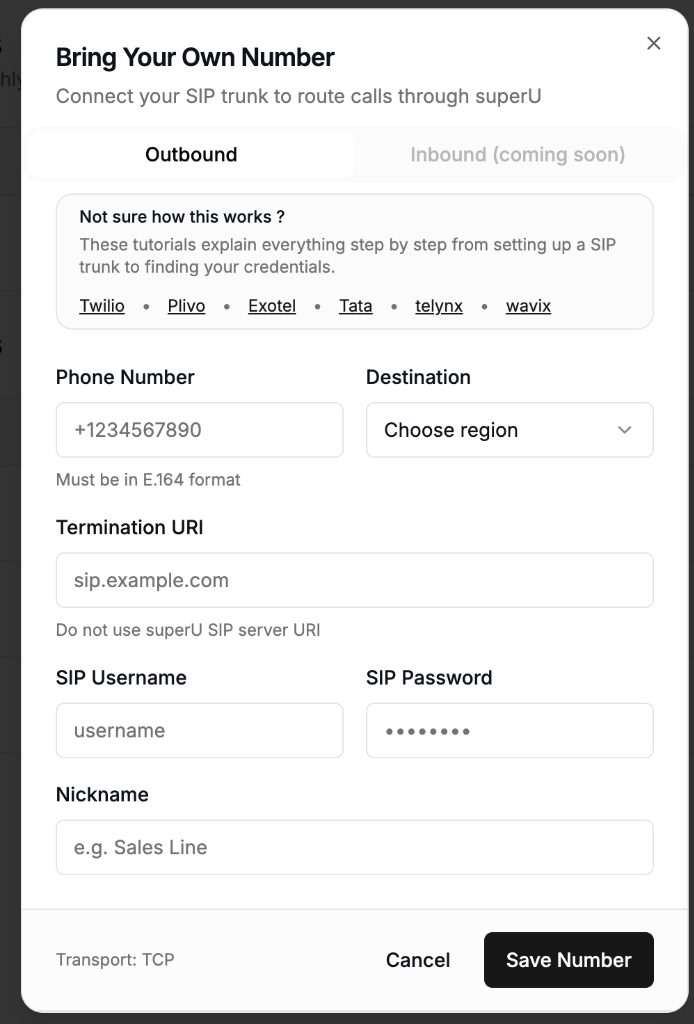
- Phone Number: Enter the Wavix phone number you associated with the trunk.
-
Destination: Select the appropriate region.
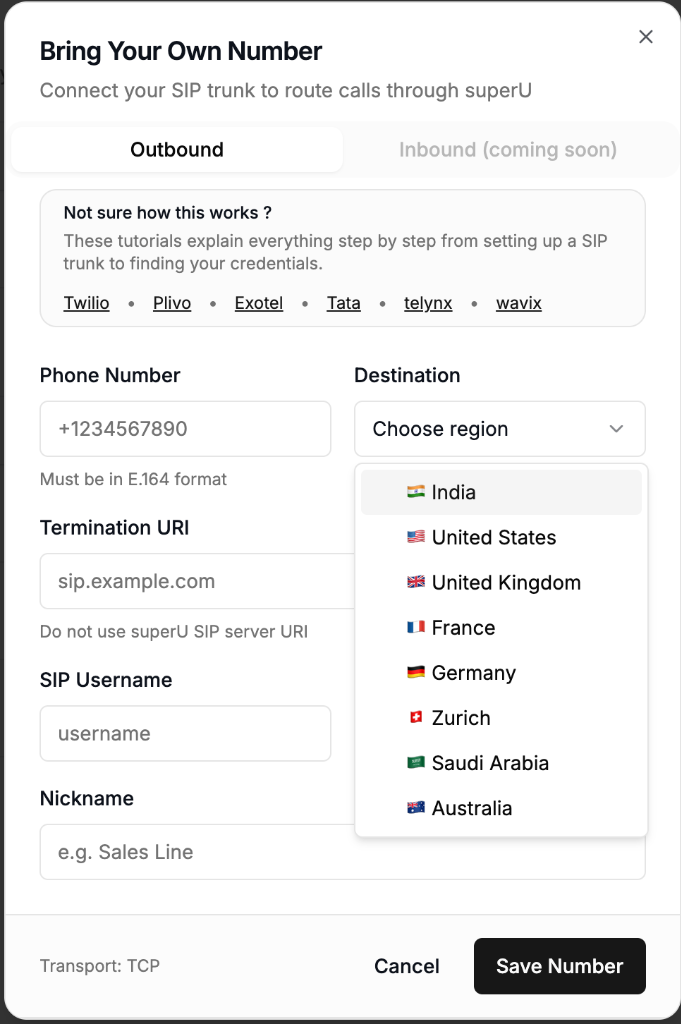
- India
- United States
- United Kingdom
- France
- Germany
- Zurich
- Saudi Arabia
- Australia
-
Termination URI: Enter the Wavix SIP gateway address (e.g.,
us1.wavix.netor<country-code>.wavix.net). - SIP Username: Enter your 5-digit SIP trunk ID.
- SIP Password: Enter the Password you set for the trunk.
- Nickname: Give this number a recognizable name (e.g., “Wavix Outbound”).