

1
Sign in to Telnyx Portal
Sign in to the Telnyx Portal.
2
Create SIP Connection
Navigate to Voice → SIP Trunking. Select Create SIP Connection,
provide a friendly name (e.g., “SuperU Outbound”), and click Create SIP
Connection.
3
Configure Outbound Settings
Select Outbound in the settings of your SIP connection.
- Outbound Voice Profile: Create a new profile or select an existing one.
- Authentication: Under Expert Settings (or Authentication settings), choose Credentials.
- Credentials: Create a Username and Password.
Make sure these values match the username and password you use for your
SuperU outbound trunk.
4
Connect to SuperU
Go to your SuperU dashboard and open the Bring Your Own Number modal.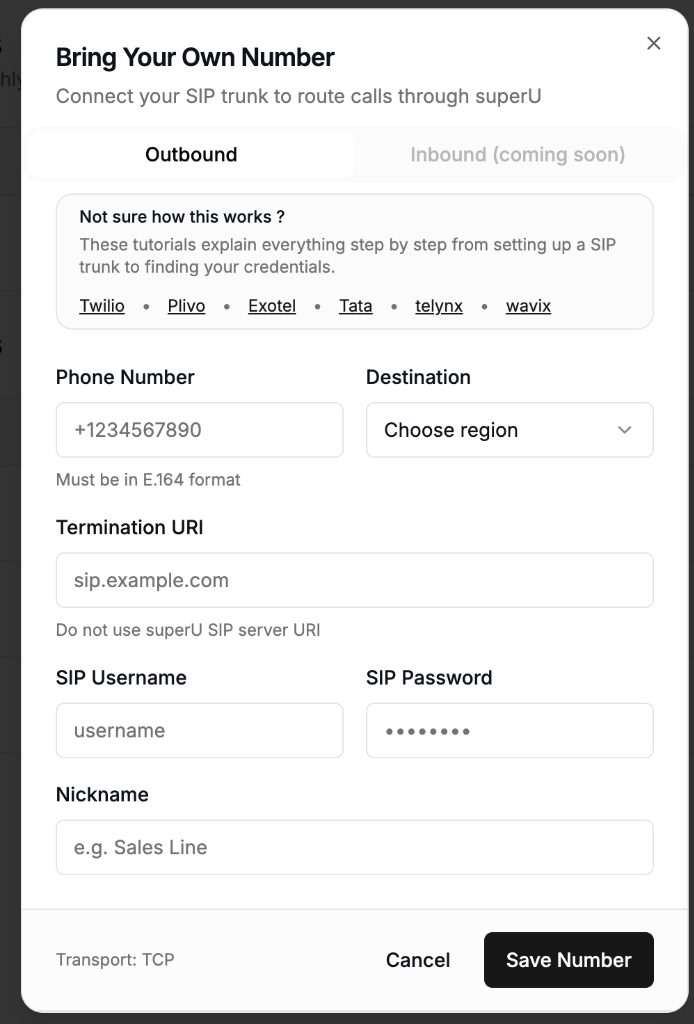
- Phone Number: Enter the phone number you purchased in Telnyx.
-
Destination: Select the appropriate region.
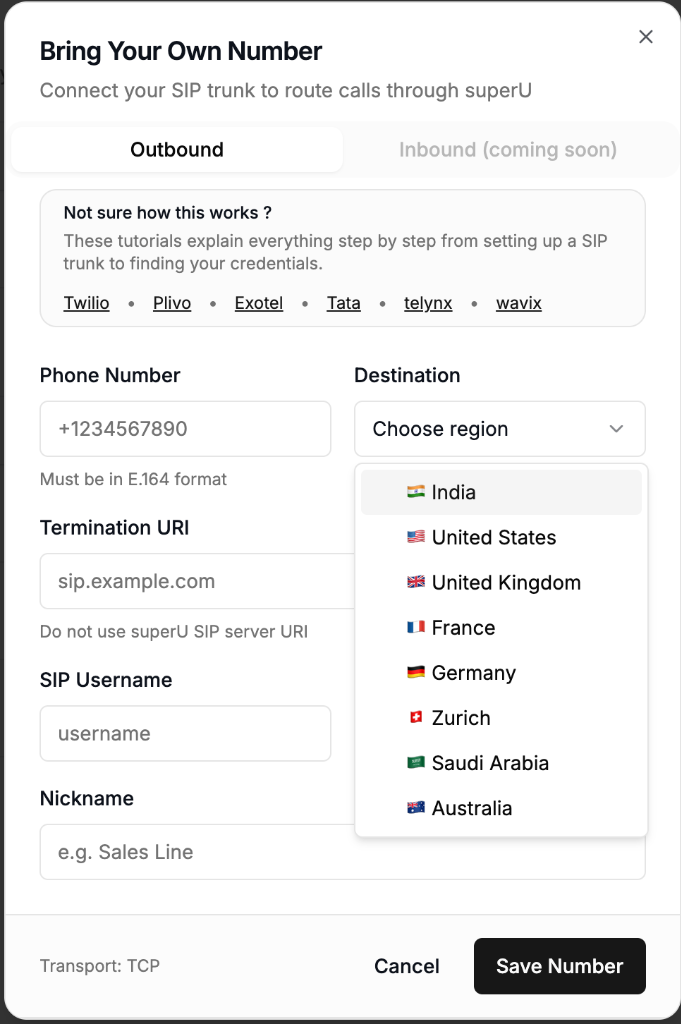
- India
- United States
- United Kingdom
- France
- Germany
- Zurich
- Saudi Arabia
- Australia
-
Termination URI: Enter
sip.telnyx.com. - SIP Username: Enter the username you created in the Outbound Settings.
- SIP Password: Enter the password you created in the Outbound Settings.
- Nickname: Give this number a recognizable name (e.g., “Telnyx Outbound”).