> ## Documentation Index
> Fetch the complete documentation index at: https://docs.superu.ai/llms.txt
> Use this file to discover all available pages before exploring further.
# Add Knowledge Base to Your Agent
> Create and connect knowledge bases to make your AI agent informed and accurate.
The Knowledge Base is what makes your AI agent sound informed. It's where you store all the product details, FAQs, or support information your agent will use while talking to customers. Think of it as your agent's brain: without it, the agent can talk, but it won't *know* much.
## Create a New Knowledge Base
From the left sidebar, click **Knowledge Base** under the "Build" section.
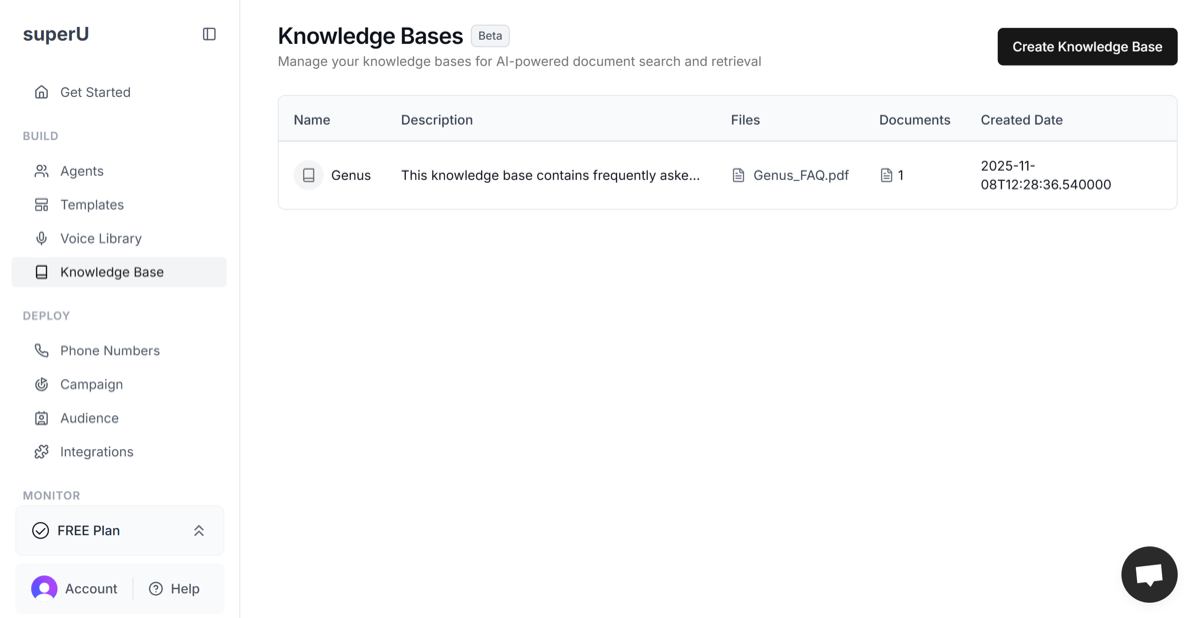 You'll see a list of all your existing Knowledge Bases. Click **Create Knowledge Base** in the top-right corner to make a new one.
Enter a **Name** for your Knowledge Base (for example, *Genus Product FAQs*).
You'll see a list of all your existing Knowledge Bases. Click **Create Knowledge Base** in the top-right corner to make a new one.
Enter a **Name** for your Knowledge Base (for example, *Genus Product FAQs*).
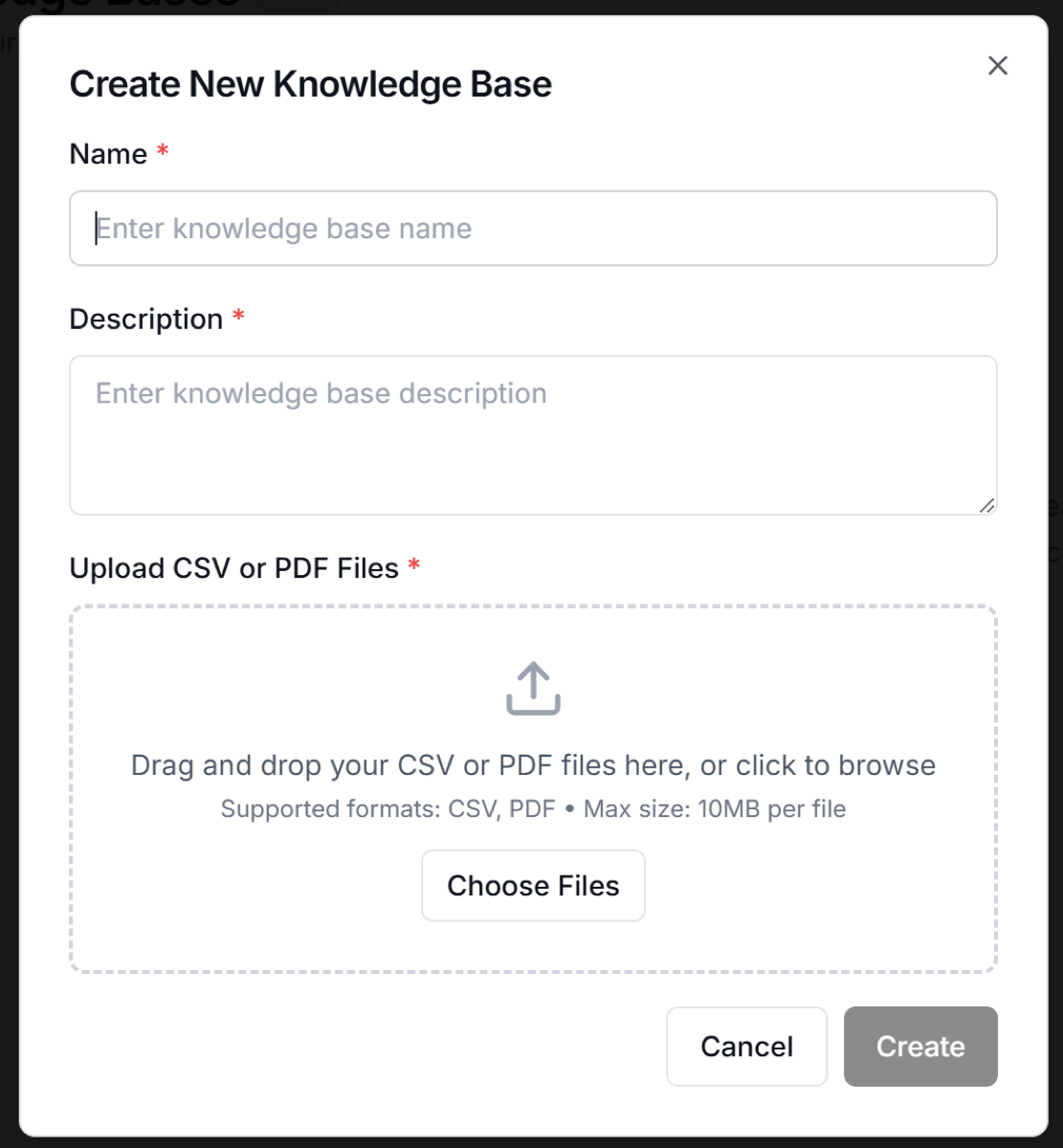 Add a **Description** that clearly explains what the file contains.
* Example: *This Knowledge Base includes Genus inverter and battery FAQs with product features, model details, and warranty information.*
* **You absolutely need to add an accurate description along with your PDF or CSV file without it, the Knowledge Base will not have enough context to work properly.**
Upload your file by clicking **Choose Files**.
* Supported formats: **CSV** or **PDF**
* File size limit: **10 MB**
Click **Create** once your file is uploaded and description is filled in.
Add a **Description** that clearly explains what the file contains.
* Example: *This Knowledge Base includes Genus inverter and battery FAQs with product features, model details, and warranty information.*
* **You absolutely need to add an accurate description along with your PDF or CSV file without it, the Knowledge Base will not have enough context to work properly.**
Upload your file by clicking **Choose Files**.
* Supported formats: **CSV** or **PDF**
* File size limit: **10 MB**
Click **Create** once your file is uploaded and description is filled in.
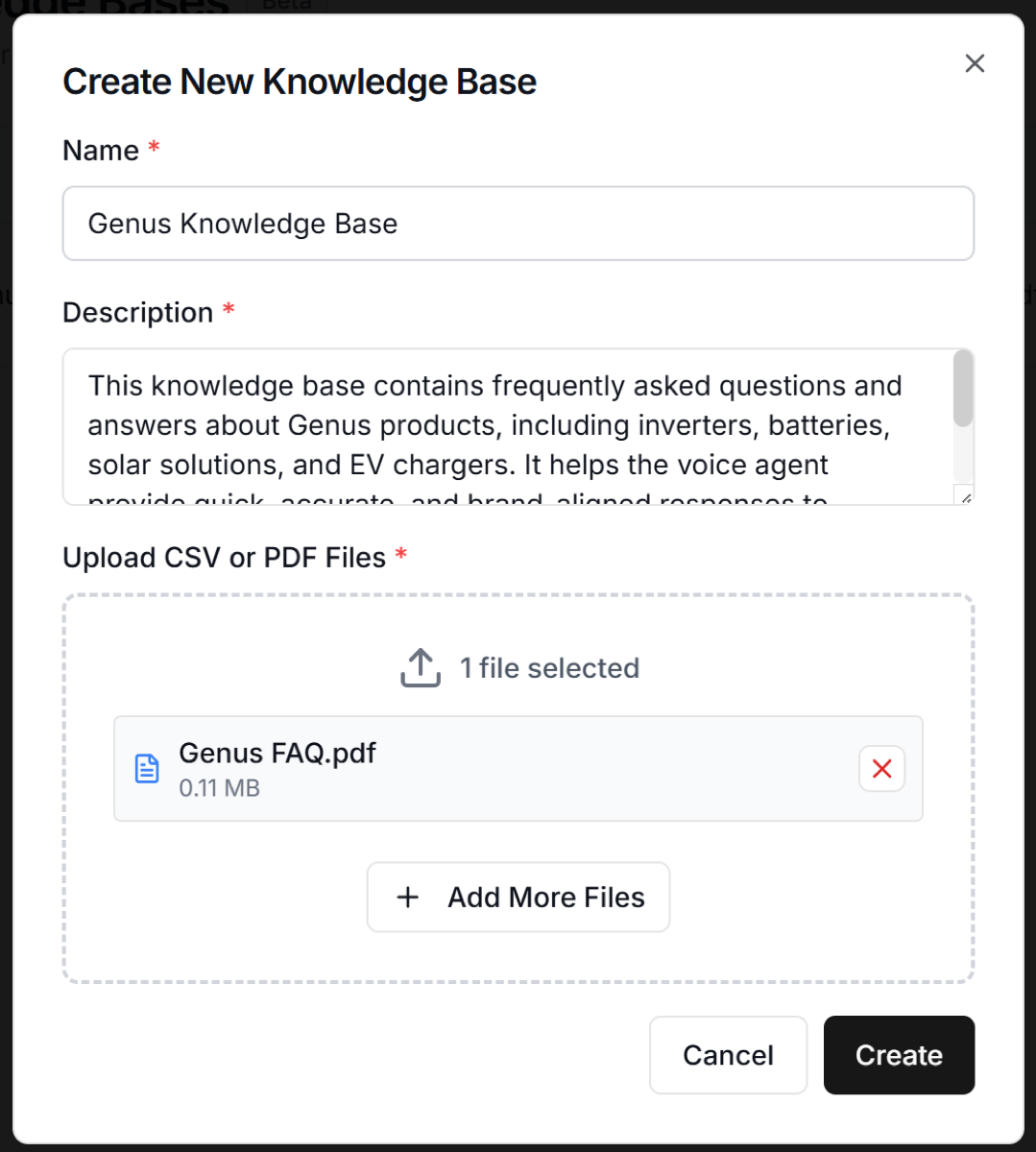 Your Knowledge Base will now appear in the main list.
## Connect Knowledge Base to an Agent
Go to the **Agents** tab.
Your Knowledge Base will now appear in the main list.
## Connect Knowledge Base to an Agent
Go to the **Agents** tab.
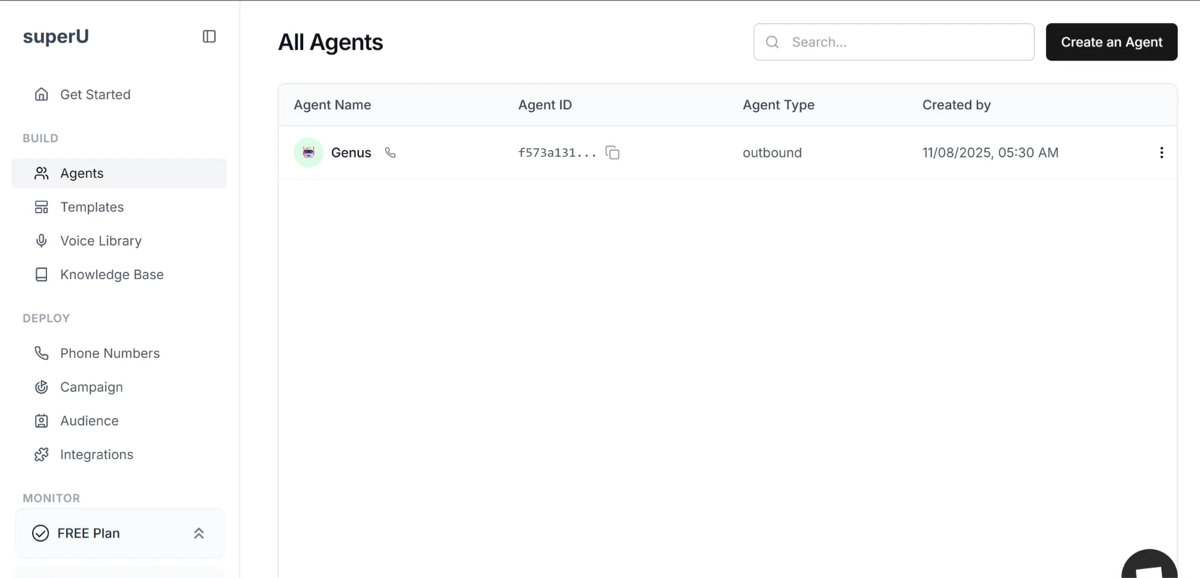 Open the agent you want to link with this Knowledge Base. On the right panel, click **Knowledge Base**.
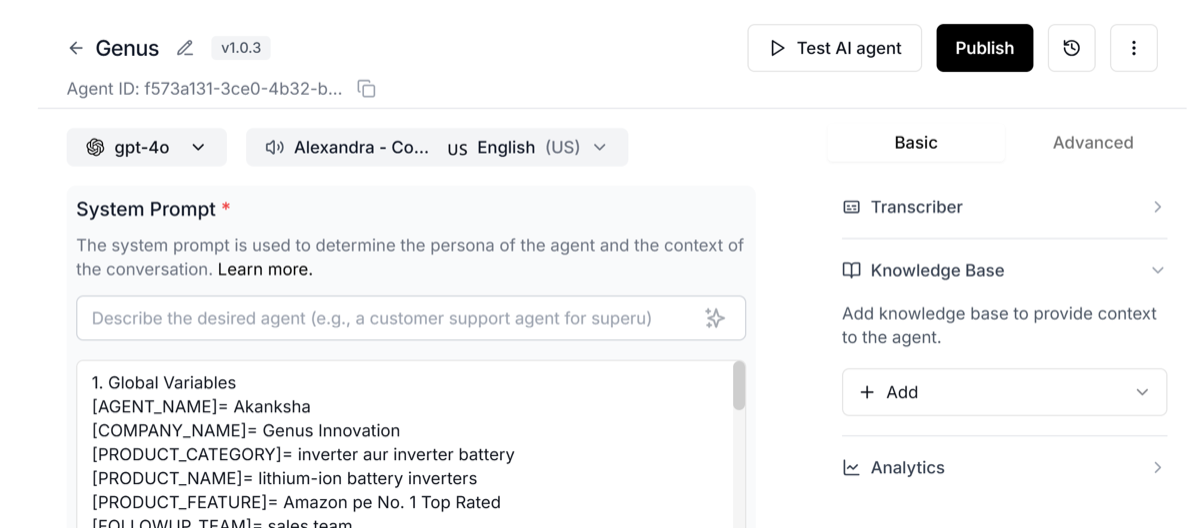 Select your new Knowledge Base and click **Save**.
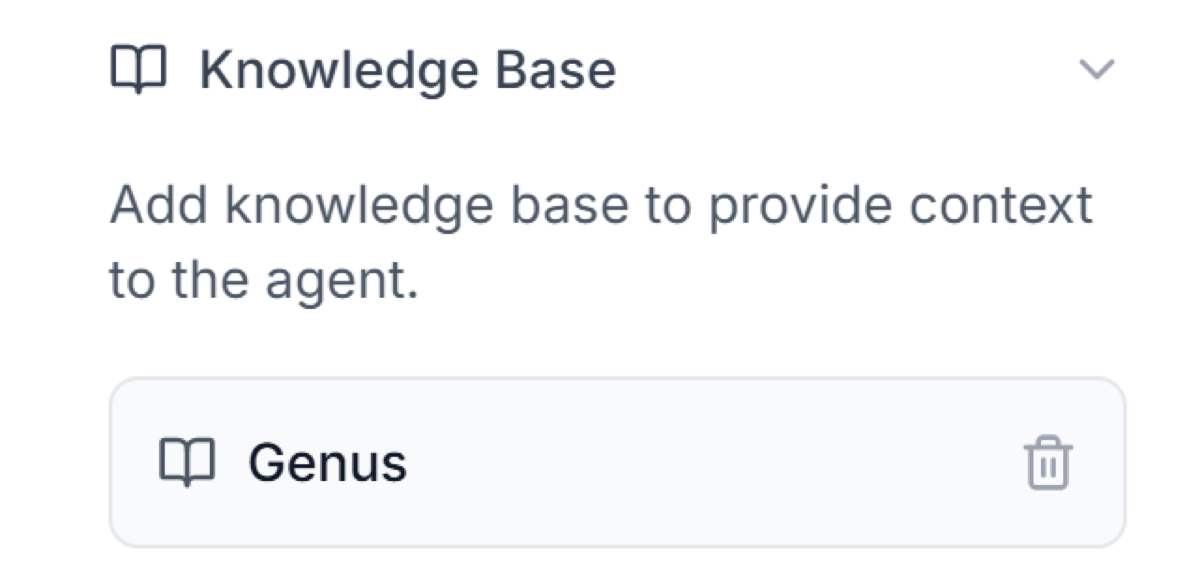 The agent will now use that Knowledge Base to answer questions during calls and your agent will sound informed and updated.
## Review and Update Files
Click it anytime to view or replace the document. You can upload multiple files if you want to expand the same Knowledge Base later.
The agent will now use that Knowledge Base to answer questions during calls and your agent will sound informed and updated.
## Review and Update Files
Click it anytime to view or replace the document. You can upload multiple files if you want to expand the same Knowledge Base later.